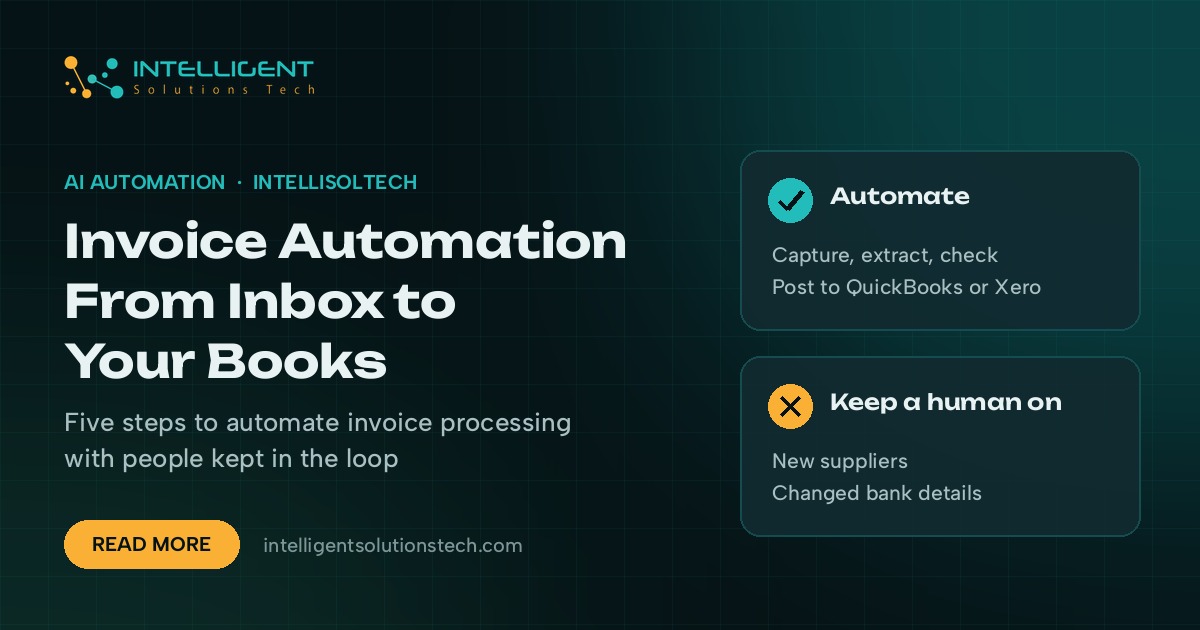
Invoice automation means the bills that land in your inbox get read, checked and entered into your accounting software without someone retyping them. If you want to automate invoice processing in a small business, the job splits into five steps: capture, extraction, checking, approval and posting. Each step can run on its own, and each one has a clear point where a person should still look.
Most owners we talk to start with the same complaint. Bills arrive as PDF attachments, photos from a phone, supplier portal downloads and the odd paper copy. Someone opens each one, types the supplier, date, amount and tax into QuickBooks or Xero, then files the PDF somewhere. It’s slow, and it’s where duplicate payments and missed due dates come from.
This guide walks through how we build that flow for clients, which tools fit at each stage, and where automation should stop and a human should take over.
What invoice automation actually does
An invoice automation workflow is a chain of small jobs. A mailbox rule or watcher picks up new bills. An extraction step turns the PDF into structured fields. A set of checks compares those fields against what you expect. An approval step routes anything unusual to the right person. A final step creates the bill in your accounting software and attaches the original file.
None of this needs a custom platform. Most of it runs on tools you may already pay for, plus an automation layer such as Make, Zapier or n8n to connect them. The value comes from wiring the steps together with sensible rules, and from deciding up front which exceptions a person handles.
Step 1: Capture every bill in one place
Automation breaks down when invoices arrive through six different doors. Before anything else, pick one intake point. For most small businesses that’s a dedicated address like bills@yourcompany.com.
- Ask suppliers to send invoices to the bills address only, and update the address on supplier records.
- Forward bills that still reach personal inboxes with a simple mail rule.
- For paper bills, have whoever opens the mail scan or photograph them straight to the same address.
- For supplier portals, set a weekly reminder to download and forward new statements until you can automate the download.
Once everything lands in one mailbox, a watcher in your automation tool can pick up each new message, save the attachment to a cloud folder and start the rest of the flow.
Step 2: Extract the fields you need
Extraction turns a PDF into data: supplier name, invoice number, invoice date, due date, line items, subtotal, tax and total. There are three common routes.
- Accounting app add-ons. Tools like Dext and Hubdoc are built for this and push bills into QuickBooks Online or Xero. They suit firms with steady volumes and standard invoice layouts.
- Document AI services. Google Document AI, Azure AI Document Intelligence and Amazon Textract all offer invoice models you can call from a workflow.
- Large language models. Claude or ChatGPT can read an invoice and return the fields as JSON. This handles messy, one-off layouts well, and you can ask the model to flag anything it isn’t sure about.
Whatever you pick, store the extracted fields next to the original file. When a number looks wrong later, you want to see the source in one click.
For a deeper look at the extraction side, see our page on document processing with AI.
Step 3: Check before anything gets posted
This is the step most DIY setups skip, and it’s the one that saves real money. Before a bill reaches your books, the workflow should run a short list of checks.
- Duplicate check. Search your accounting software for the same supplier and invoice number. Duplicate bills are one of the most common slips in manual entry, and one of the costliest.
- Supplier match. Confirm the supplier exists in your contact list. New suppliers go to a person.
- Math check. Line items should add up to the subtotal, and subtotal plus tax should equal the total.
- Purchase order match. If you use POs, compare the bill against the open PO for quantity and price.
- Bank detail change. If the payment details on the invoice differ from what you hold for that supplier, stop the flow and alert someone. Changed bank details are a classic sign of invoice fraud.
Anything that fails a check goes into an exceptions list with the reason attached. Anything that passes moves on.
Step 4: Route approvals to the right person
Small teams usually need a simple rule set. Bills under a set amount from known suppliers can post straight away. Larger bills, new suppliers and anything coded to certain accounts go to an owner or manager.
The approval itself can live wherever your team already works. A message in Slack or Microsoft Teams with Approve and Reject buttons works well. So does an email with two links. Keep the request short: supplier, amount, due date, a link to the PDF and the reason it needs approval.
Set a reminder for approvals that sit untouched for two working days. Late approvals are why bills get paid late, even when the automation itself runs on time.
Step 5: Post to your accounting software
QuickBooks Online and Xero both offer APIs that let a workflow create a bill, attach the source file and set the supplier, accounts and tax codes. Make, Zapier and n8n all have connectors for both.
Coding is where you’ll want some care. Map each regular supplier to a default expense account and tax code, and let the workflow apply that default. For suppliers who bill across several accounts, have the model suggest a code and send it for review until you trust the pattern.
Once the bill is posted, move the original PDF to an archive folder named by year and month, and write the bill ID back into your tracking sheet or database. That trail makes month-end and audits far less painful.
Where people should stay in the loop
Automating invoice processing doesn’t mean nobody looks at bills. It means people look at the right ones. We keep a human on these cases:
- First invoice from any new supplier.
- Any change to supplier bank details.
- Bills above your approval threshold.
- Extraction results the model marks as low confidence.
- Credit notes and partial refunds, which often confuse both models and rules.
Everything else can flow through. Over time you’ll see which exceptions keep repeating and can turn some of them into rules.
A simple stack for a small business
Here’s a setup that works for many service businesses with a modest monthly bill count.
| Stage | Tool options | Notes |
|---|---|---|
| Capture | Gmail or Outlook shared mailbox | One address for all bills |
| Extraction | Dext, Hubdoc, Document AI or an LLM | Pick by volume and layout variety |
| Checks and routing | Make, Zapier or n8n | Rules live here |
| Approvals | Slack, Microsoft Teams or email | Keep requests short |
| Posting | QuickBooks Online or Xero API | Attach the source PDF |
| Archive | Google Drive or SharePoint | Folder per month |
If you already pay for one of the accounting add-ons, start there and add the checks and approvals around it. If your invoices come in many shapes, an LLM extraction step usually handles the variety better.
How to tell if it’s worth building
Count how many bills you handle in a typical month and time how long one takes from inbox to posted. Multiply those, then add the time spent fixing duplicates and chasing approvals. That’s the hours you’re working with.
Our automation ROI calculator takes those numbers and shows the payback period against build and running costs. For accounting practices handling bills on behalf of clients, our page for accounting and CPA firms covers the multi-client side, where the same flow runs across many sets of books.
If you’re weighing a fixed workflow against something more autonomous, our post on AI agents vs automations explains where each one fits. For invoices, a rules-based workflow with an AI extraction step is usually the right call. You want predictable behavior around money.
Common mistakes to avoid
- Skipping the duplicate check because the first few weeks look fine.
- Letting the workflow create new suppliers on its own.
- Posting bills without attaching the source file.
- Building approvals in a tool nobody on the team opens.
- Never reviewing the exceptions list, so the same problems repeat every month.
Each of these is cheap to fix at build time and expensive to fix after a few hundred bills have gone through.
Getting started
Start small. Set up the single bills address this week and let it collect a month of invoices. That gives you real samples to test extraction against and shows which suppliers and layouts make up most of your volume.
When you’re ready to build the full flow, our invoice and accounts payable automation service covers capture, extraction, checks, approvals and posting to QuickBooks or Xero. Every build is priced after a free audit of your current process, and you review each stage before it goes live.